Browser-based workflow
Use glb to obj online for a ready-to-edit scene
A glb to obj online workflow helps you move from a compact GLB asset toward an OBJ-based scene without installing a desktop converter first. Review the file, choose the right options, and hand off your task to the scene workspace.
Prerequisites
Before starting, confirm that the source file opens correctly, identify whether textures matter, and know where the resulting OBJ assets will be used.
-
1
Check the source
Confirm that the file is a GLB asset rather than a similarly named archive. Look for a complete scene, readable geometry, and any visual details that must survive the handoff.
-
2
Choose the destination
Decide whether you need an editable OBJ scene, a geometry-only result, or a workflow that keeps texture references available for later review.
-
3
Inspect the result
Open the converted scene in the application where it will be used. Check scale, orientation, materials, object separation, and the presence of companion texture files.
- 1 GLB source file
- 1 input format
- 2 OBJ destination file
- 1 output format
- 3 Languages available across the site
- 6 site locales
One full run-through
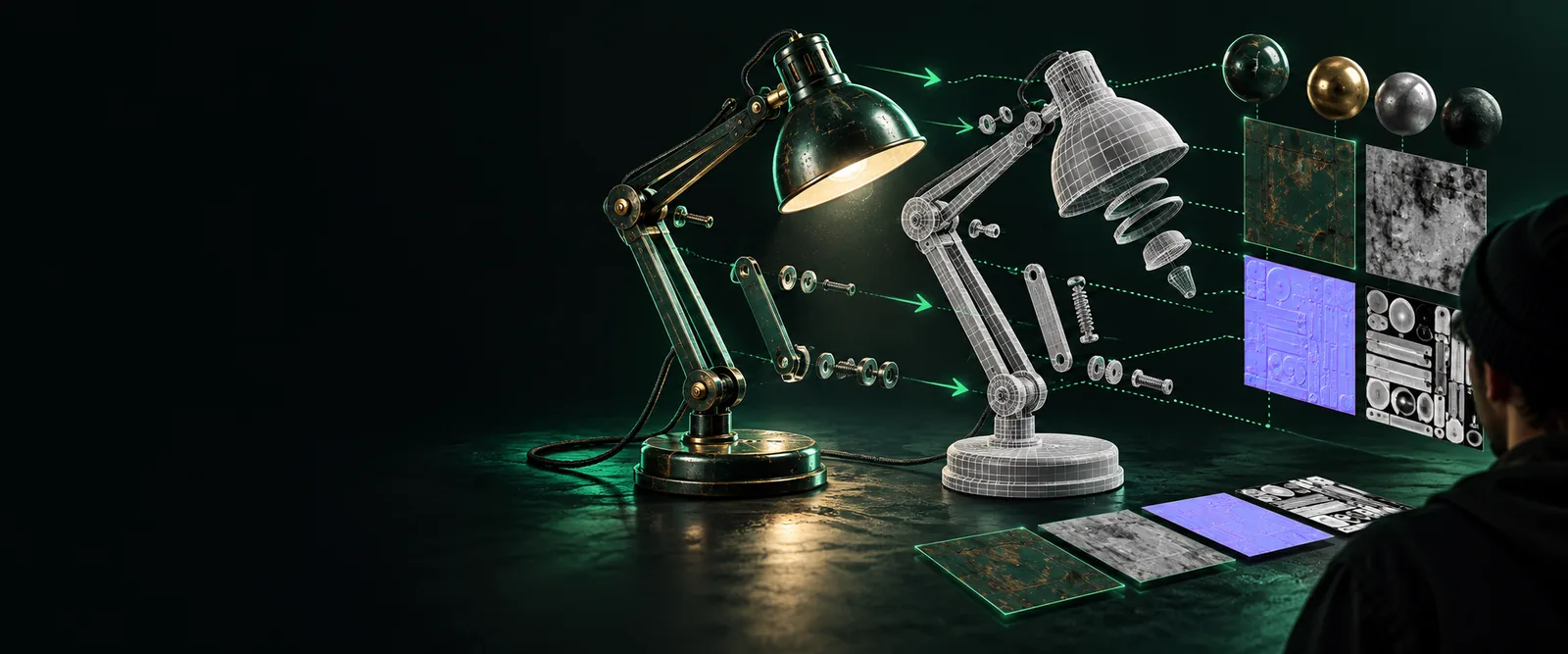
The visual change is usually less about the model itself than about how the scene, materials, and companion files are represented after the handoff.
- GLB source
- OBJ handoff
Illustrative comparison of source and destination concerns.


What fails
An online route can simplify the handoff, but it cannot repair every problem hidden inside a source asset. These are the checks most likely to matter.
-
Missing or external textures
A GLB may display correctly because its visual assets are embedded, while an OBJ workflow may need separate material and image references.
WorkaroundKeep the original GLB and inspect the exported material file and image folder together.
-
Unsupported scene features
Animations, cameras, lights, node graphs, and engine-specific settings may not have a direct equivalent in a basic OBJ scene.
WorkaroundPreserve the original GLB for animated or interactive use, and treat OBJ as a geometry-focused handoff.
-
Scale or axis changes
Different 3D applications can interpret units, forward axes, and up axes differently, making a correct model appear rotated or incorrectly sized.
WorkaroundUse a known reference dimension and verify orientation immediately after opening the result.
-
Heavy or complex geometry
Large scenes with dense meshes can be slow to inspect and may need cleanup before they are practical in the next tool.
WorkaroundRemove unused objects or simplify the source in a dedicated 3D editor when the output is too heavy.
Options table
Use this side-by-side view to decide whether an online handoff fits the job or whether the source should remain in its original form.
Online GLB to OBJ handoff
Keep or edit the original GLB
Best starting point
Online GLB to OBJ handoff
A straightforward format change or application handoff
Keep or edit the original GLB
Interactive, animated, or engine-ready scene work
Scene geometry
Online GLB to OBJ handoff
Designed around OBJ-compatible mesh data
Keep or edit the original GLB
Retains the source scene structure more closely
Materials
Online GLB to OBJ handoff
Requires checking material references and texture companions
Keep or edit the original GLB
Often keeps source relationships intact
Animation support
Online GLB to OBJ handoff
Not the primary strength of OBJ
Keep or edit the original GLB
Better suited to preserving animated scene data
Portability
Online GLB to OBJ handoff
Useful when the next tool expects OBJ
Keep or edit the original GLB
Useful when the next tool already supports GLB
Quality control
Online GLB to OBJ handoff
Requires an inspection pass after conversion
Keep or edit the original GLB
Still requires inspection, but avoids one format boundary
Ready to review your 3D file?
Take the source format, texture needs, and destination application into account before you begin. Use the scene workspace as the next handoff point, then verify the resulting assets in the tool where they will be used.
Open scene workspace- Check geometry and scale
- Review material references
- Keep the original source file
FAQ
It describes moving a GLB 3D asset through a browser-based or hosted workflow so the result can be used as an OBJ scene. The phrase can refer to the conversion route, the surrounding checks, or the destination workspace.
An online route may reduce the need to install a dedicated desktop converter, but the result still needs to be reviewed in the application where you plan to use it. Check the source, output structure, and any companion materials before relying on it.
No. OBJ commonly relies on separate material and image references, so a model can arrive with geometry but missing or disconnected textures. Keep the related files together and inspect the material references after the handoff.
OBJ is primarily a geometry exchange format and is not a direct replacement for the animation and scene behavior that may exist in a GLB. Keep the original GLB when animation, cameras, lights, or interactive features are important.
Applications can interpret units and coordinate axes differently. Compare the result with a known dimension, verify the up axis, and correct orientation or scale in the destination application if necessary.